ZOMBIE AI VIDEO
Make your zombie couple video from two photos
Make a zombie couple video from two photos. Upload your portraits here, choose portrait or landscape, and turn your pair into an AI zombie love story.
Create your couple videoCreate your zombie AI video
Photo tipsTwo photos. One haunting memory.
 Photo 1 · Survivor
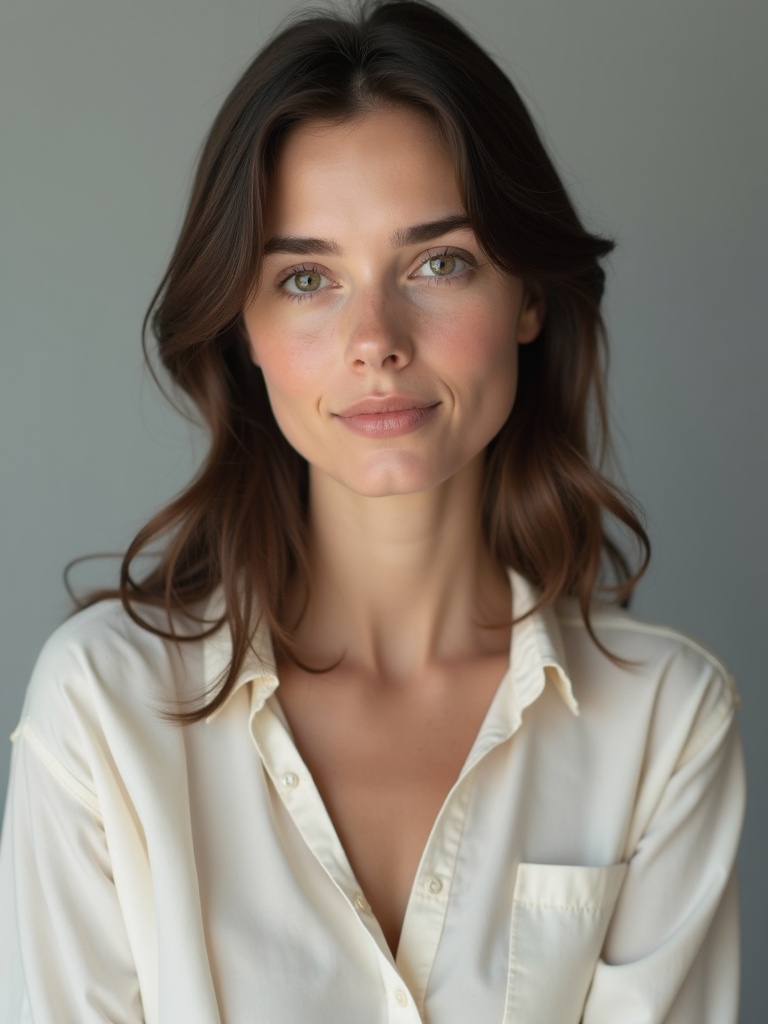 Photo 2 · Partner
A chilling encounter, a lowered weapon, a run into familiar arms. Fictional AI-generated adults · 15-second example with sound.
Create your own couple videoYour zombie couple video starts with two faces
A zombie couple video puts you and your partner inside a fictional undead scene. Start with one separate portrait of each person, then use the photo-to-video studio to bring the pair together. The appeal is the contrast: familiar faces, an eerie atmosphere, and a small romantic moment in an unfamiliar world. You do not need matching costumes or a joint photo shoot. Two well-chosen portraits give you a starting point for a Halloween greeting, a playful anniversary message, or a short story to share with your partner.
Choose photos that work as a pair
Use a clear, recent portrait for each adult, with the face visible and enough room around the head. Soft daylight helps facial features stand out. Avoid sunglasses, face-covering hands, heavy beauty filters, and busy group shots. The two photos do not need the same background, but similar camera angles and lighting make it easier to imagine the subjects together. Keep an untouched copy of each original so you can try another crop later. Only use photos that both people have agreed to animate.
Fix common portrait problems before uploading
If one face looks much smaller than the other, crop a copy of that photo so the head and shoulders fill a similar share of the frame. Leave space above the hair and avoid cutting through the chin. A dark face against a bright window is harder to see; choose another photo with light falling onto the face instead. If your only picture is a group shot, make two separate crops with just one person in each. Do not enlarge a tiny distant face and expect missing detail to return. Choosing another original is usually a more useful first step than adding sharpening or a heavy filter.
How to make your zombie couple video
Use the studio on this page, above the example video. Add the first portrait and then the second, keeping track of which person belongs in each position. Select the zombie couple effect and review the available scene options. Choose your aspect ratio before submitting: a vertical frame keeps the couple prominent, while a horizontal frame leaves more space around them. Sign in, review the credits shown in the studio, and submit your request. Open My videos to follow the existing task rather than starting another request while the first is processing.
Frame the couple for the place you will share
Choose 9:16 for a phone-first composition, such as a vertical story or short video. Keep both faces near the middle so captions and platform controls have room around the edges. Choose 16:9 when you want a wider scene for a desktop screen or a landscape edit. Decide where the clip will live before creating it; cropping a finished horizontal video into a narrow vertical frame can remove one of the two characters. Add your own caption after downloading if you want a personal greeting or a short line of dialogue.
Give the clip a simple story
A strong couple scene needs one clear idea. Try a Halloween date, a reunion after the apocalypse, or an anniversary with an undead twist. A short caption can establish the relationship without asking the image to explain everything at once. For more narrative ideas, read the zombie love story guide. If you are still choosing between a couple scene and a companion scene, explore the zombie pet video guide too. Keep the focus on the two characters and their relationship rather than filling the frame with unrelated details.
Three ways to make the story feel like yours
For a Halloween greeting, let the spooky setting carry the joke and add a short caption such as ‘Still my favorite person after the apocalypse.’ For an anniversary, use a line that means something to both of you, then keep dates or personal details out of a public post if you would rather keep them private. For a surprise message, share the clip directly with your partner before posting it elsewhere. These are ways to present the finished video, not extra scene controls. You can make the same visual idea feel funny, tender, or dramatic through the words you add in your own editor.
What to look for in the example
Play the sample once for the overall story, then look at how the two characters share the frame. Notice the change in mood between the darker encounter and the warmer memory. Think about whether you want your own caption to emphasize the reunion, the Halloween joke, or the relationship. The example is a curated illustration, not a preview made from your uploads. Your photos provide different faces and details, so use it to judge the style you enjoy rather than to predict an identical result. You can watch it before signing in or choosing a credit pack.
A quick check before you post
Watch the downloaded clip on the phone or screen where you plan to share it. Check the opening frame, the ending, both faces, and any added text. Keep important words away from the bottom edge, where social apps often place captions and controls. Preview your post with sound on and off so the message still makes sense in a muted feed. Save a copy without social captions if you want to make a different edit later. If either person dislikes a detail, keep the clip private or choose a different version before sharing it publicly.
Review, download, and share your version
When the task finishes, open the result in My videos and watch the full clip before downloading. Check both faces, the movement, and the composition. AI may reinterpret likeness, clothing, and small details, so each result can differ from the source photos and from the example on this page. Share the version you are comfortable with, respect your partner’s preferences, and describe the clip as AI-created when the context could cause confusion. For the complete upload-to-download walkthrough, use the photo guide linked below.
Zombie couple video FAQ
Do I need a photo of us together?
No. Prepare two separate portraits, one for each adult. Clear individual faces are a better starting point than a crowded group photo.
Can I make a vertical zombie couple video?
Yes. Choose the 9:16 portrait option in the studio. The 16:9 landscape option is available for a wider composition.
Is creating a video free?
Generation uses credits. Review the current credit requirement in the studio and the available packs on the pricing page before creating your video.
Will we look exactly like our photos?
AI likeness and motion can vary. Clear, evenly lit portraits help, but an exact match is not guaranteed. Watch both characters in the finished result before sharing.
Where can I find my finished couple video?
Sign in and open My videos to check the task status, review a completed result, and download it. Use the same account that submitted the request.